
Create a Location
Setting up your first physical location in LabBelay.
First we'll create a Location. The Location is the highest level of our organizational structure and typically represents a floor in a facility or a whole facility. Different locations are often managed by different people on the ground and depending on where they are they may have different regulatory requirements. In order for Beaker to be able to help keep your lab compliant it'll be important for it to know the physical location of your facility as well as any other emergency instructions and the contact information for the lab manager in case of emergency.
To create a location we go to the Locations page and click the "Add Location" card. This will bring up a modal dialog asking for a name and location. The name is self explanatory, but the location can be any text that will help emergency responders find you in case of an emergency. You can add anything from the city and state to a more specific address or suite number.
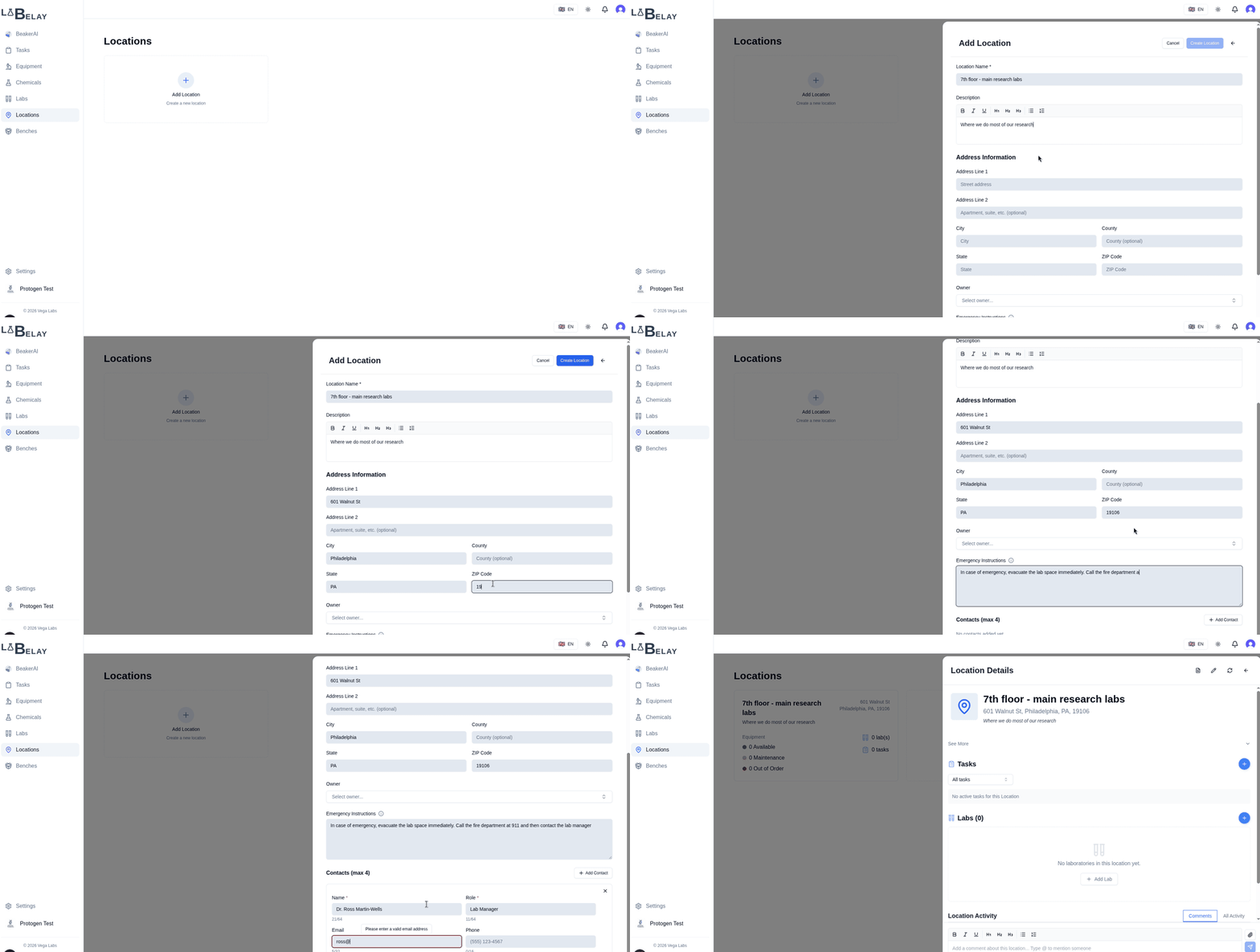
Contacts and Emergency Instructions will be printed on the signage that LabBelay will generate. Additionally this will feed into BeakerAI so that Beaker can give users specific information on who to contact and what to do in case of spills or other issues without requiring them to leave and check the signage.
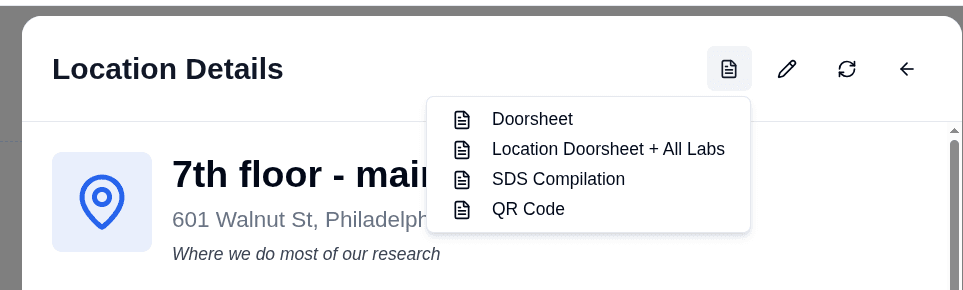
A location will have a doorsheet generated for it so you can hang signage at the entrance to the facility, which is informative as well as compliant. A location also provides a compiled comprehensive PDF of chemicals stored in that location. You can access these from the top of the location detail page. You may access the signage doorsheet for just the location, for the location and all labs in that location, the SDS compilation for all chemicals stored at that location, or a sheet with a single QR code which links to the SDS compilation.
On the location creation at the bottom there is an option to include the BSL level on the location doorsheet. Depending on your specific setup you may want to inform people that there are BSL 2 labs in this location. Selecting this at the bottom of the location creation page will enable displaying BSL information on the location doorsheet, and this may be changed at any time.
Editing a location
You can edit the properties of a location at any time by modifying it with the edit button at the top of the location detail page.
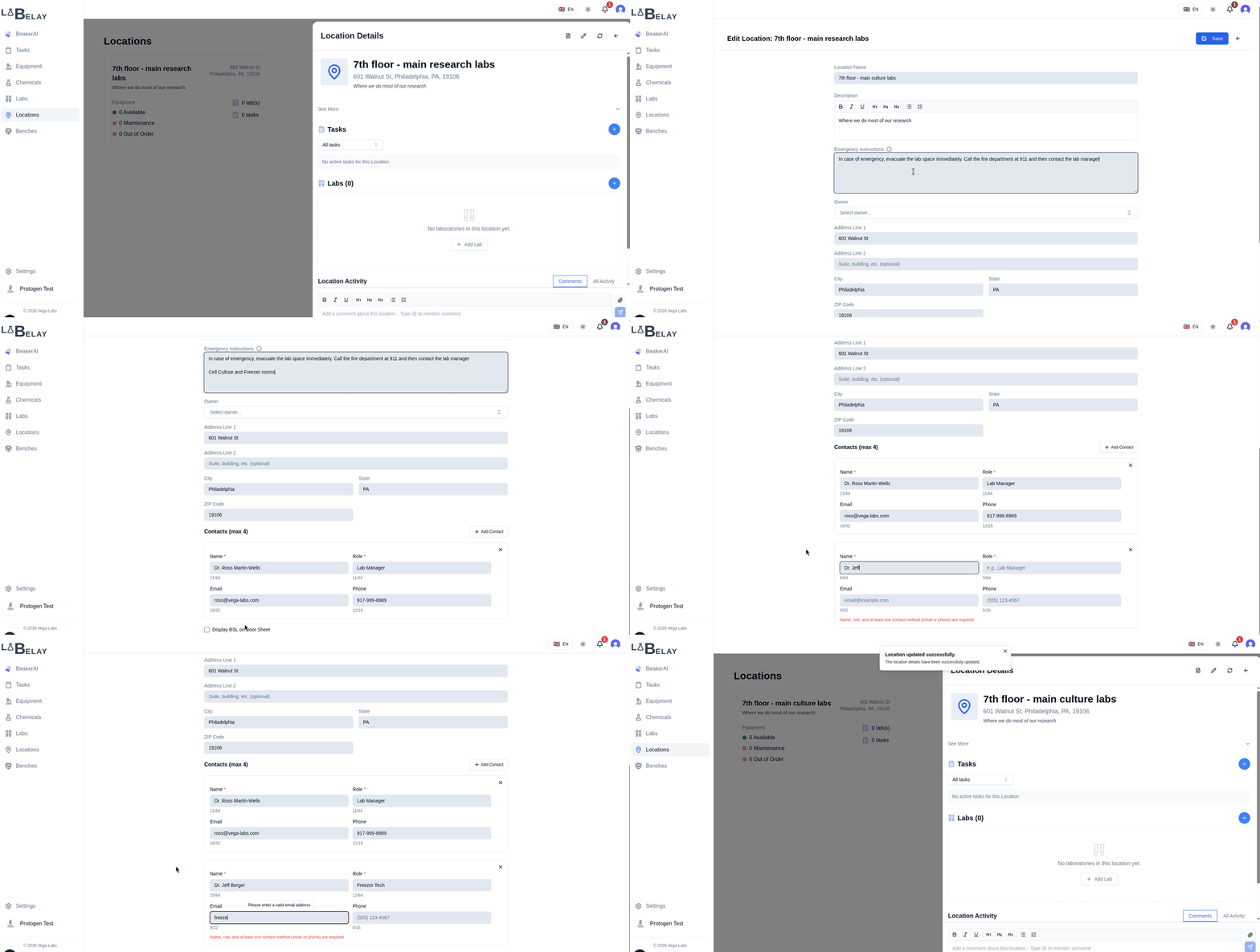
In the location edit view you can change the name, address, emergency information and contacts. You can also change how BSL is displayed on the location signage.
Add location related tasks
LabBelay serves as a great tool to keep track of your tasks and link them to places and equipment throughout your facility. Locations can have tasks associated with them, such as paperwork filing or building maintenance. Let's add a task for the annual fire drill.
To do this we'll scroll down on the location detail page to the tasks section and click the + icon to bring us to a new task page. Here we'll enter some information about our annual fire drill.
We'll make it so this task is due every year and assign it to our lab manager to be in charge of.
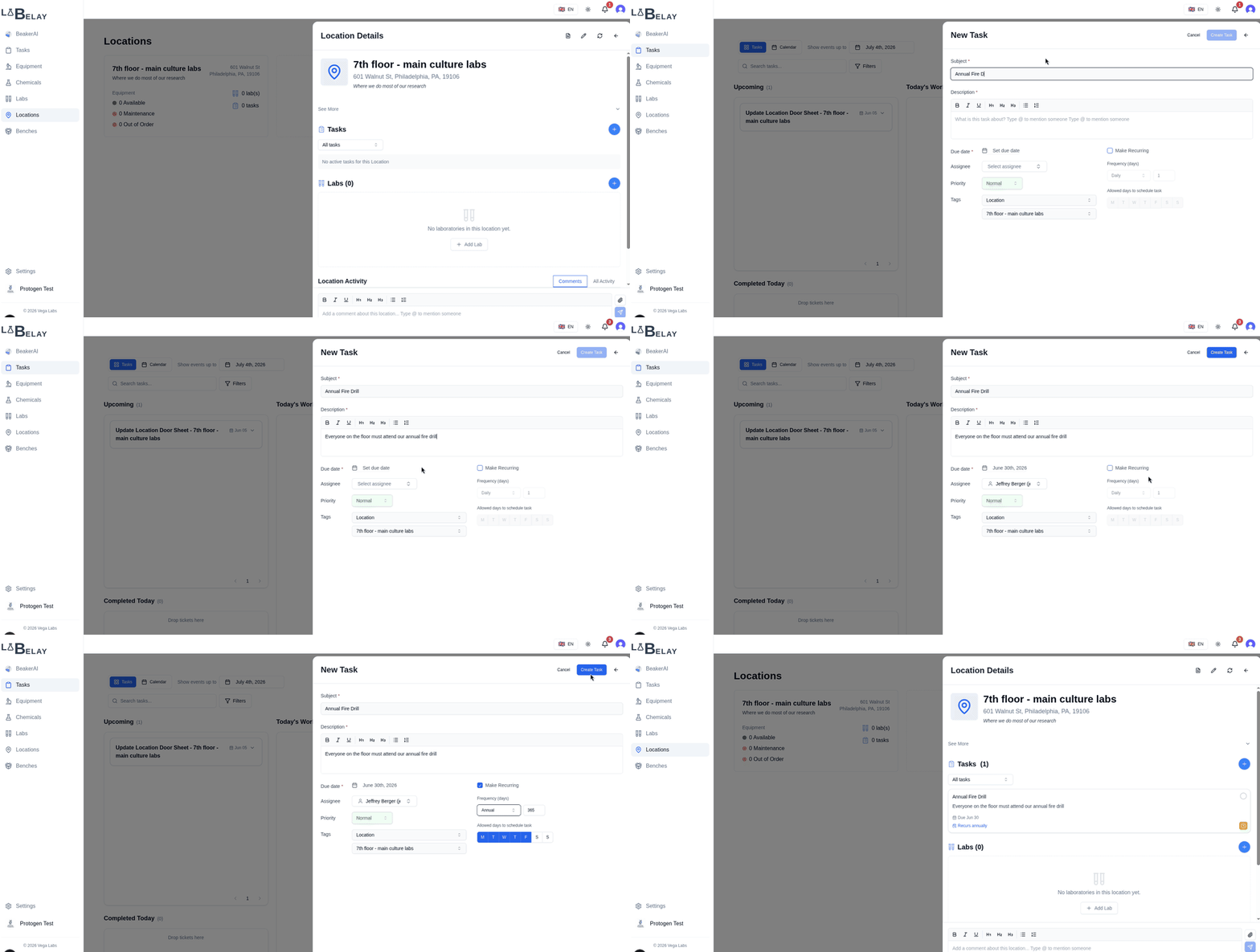
We'll go more into depth with how to use the task system and how it differs from other calendar applications in the Tasks documentation, but for now let's go back to our location. After creating the task we can click on the badge for the location to go back to our location.
Location Audit Log
We can scroll to the bottom of the location detail page and we'll find a log of all of the changes that have been made to the location, as well as a place to add comments and upload files that are attached to the Location. You can make a comment and see how it behaves. We'll go into more depth on the audit log and how to use it for regulatory compliance later.
Adding Labs to a Location
You cannot add equipment or chemicals directly to a Location. A Location holds Laboratories, and it is there which we do our work.
Let's add some labs to this Location now.